Dear Sitecore Family,
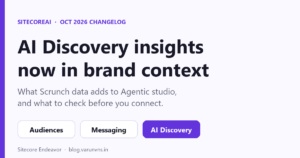
Hope you are doing good. Here is one from the October SitecoreAI changelog that I think deserves more than a skim: AI Discovery insights are now available in brand context.
On the surface it is one line in a changelog. Underneath, it is the first visible result of Sitecore bringing Scrunch (acquired in June 2026) into the SitecoreAI content engine. And the interesting part is not the button. It is what happens to your agents once the data lands.
First, the one-minute background
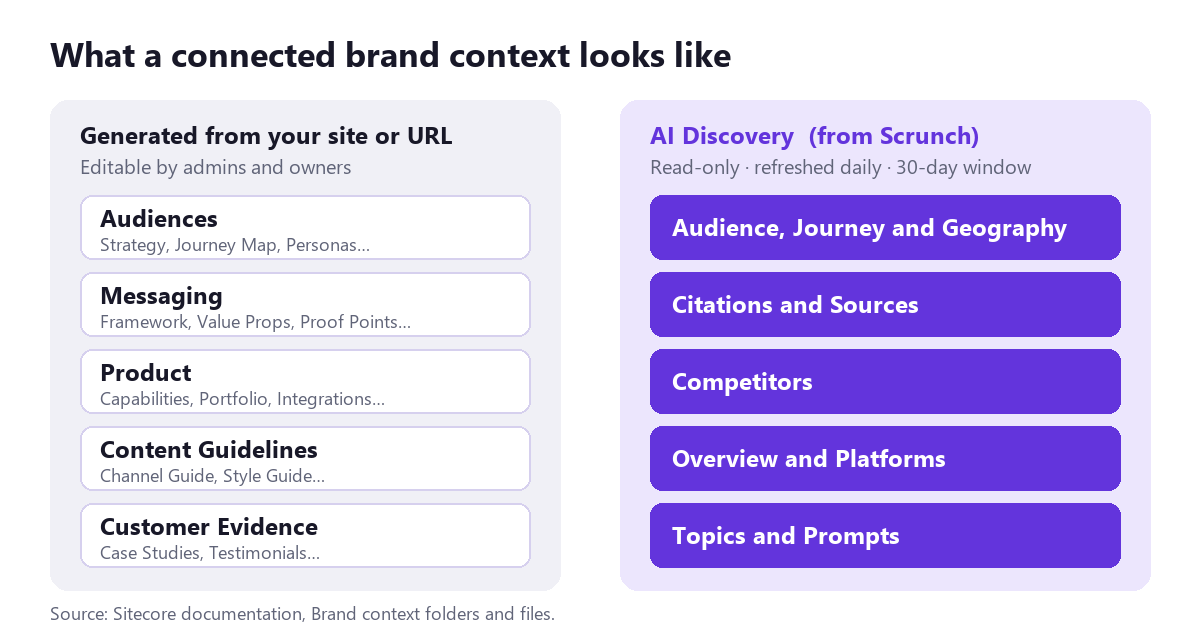
Brand context is a set of editable Markdown files that give Agentic studio a broad understanding of your brand. You create it from a single source, either a website URL or an existing SitecoreAI site, and SitecoreAI generates five standard folders: Audiences, Messaging, Product, Content Guidelines and Customer Evidence. Organization admins or owners add and edit contexts.
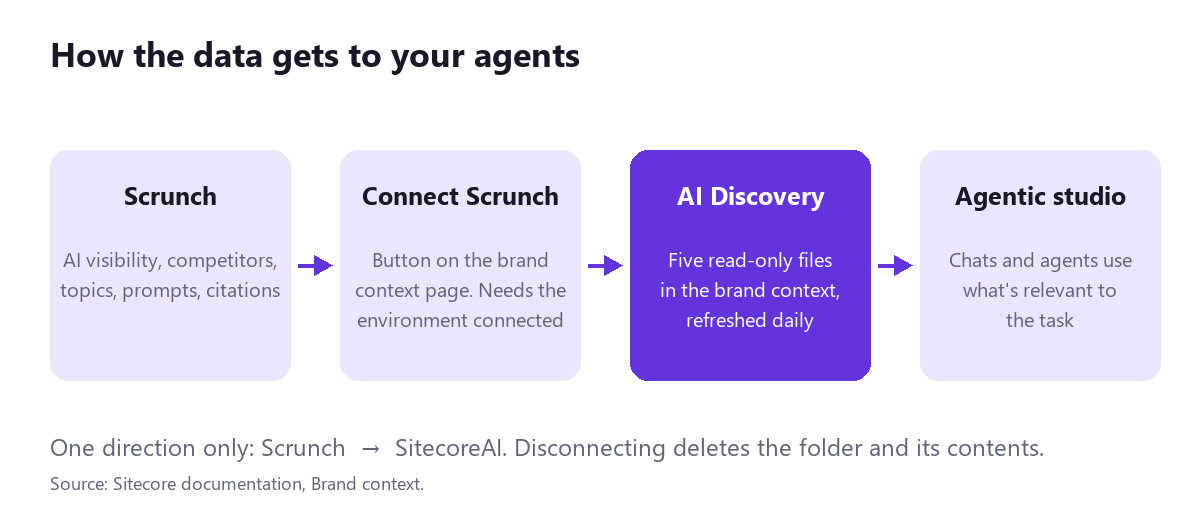
Scrunch tracks how your brand shows up in AI answers: visibility, competitors, topics, prompts and the sources AI platforms cite. Until now, that lived in Scrunch and in the AI discoverability views in SitecoreAI. With this release, a brand context can be linked to a brand in Scrunch, and that data becomes part of what your agents can read.
What actually changes
Once a brand context is connected, SitecoreAI creates a dedicated AI Discovery folder inside it. As per the documentation, it holds five sets of files:
- Audience, Journey and Geography
- Citations and Sources
- Competitors
- Overview and Platforms
- Topics and Prompts
A few details from the docs are worth knowing before you get excited:
- Read-only. You can view the files, but you can’t edit, rename, move or delete them, or add content to the folder.
- Refreshed daily. No manual sync.
- 30-day window. The default reporting window is 30 days, compared with the previous period when comparison data is available.
- Values mean different things. “0” means it was measured and the value was zero. “–” means a value isn’t available. “Not observed” means it is configured in Scrunch but wasn’t in the observed data for that period. Easy to misread, so keep this handy.
How to connect it
Prerequisites: a Scrunch subscription, and your SitecoreAI CMS environment already connected to Scrunch.
- In the top-right corner, click Brand Context.
- On the Brand context page, select the brand context you want to connect.
- At the top of the file explorer, click Connect Scrunch.
SitecoreAI then starts retrieving the data, and the AI Discovery folder appears when it finishes. If you don’t see the Connect Scrunch button, that is by design: it is shown only when the Scrunch connection is configured for your environment.
[Update, November 2026] When this feature shipped, the environment connection was a manual job. Since November 12, 2026, SitecoreAI CMS connects to Scrunch automatically. If you are on an older setup, this is what the manual route looked like:
- In Scrunch, create an API key with the Query scope, limited to one brand.
- In SitecoreAI Deploy, add an environment variable named exactly
AI_DISCOVERY_API_KEYwith the key as the value, and switch Secret on. - Use one Scrunch API key per SitecoreAI organization, added to only one environment. If a key is tied to more than one brand, SitecoreAI can’t tell which brand to use and the connection fails.
- The domain configured for your Scrunch brand must match a hostname configured for your SitecoreAI environment. SitecoreAI only shows Scrunch data for matching domains.
How agents use it
This is the part I find most interesting. You don’t pick folders or files. In Agentic studio you open a chat, click Context, and on the Brand Context tab select the context. From there, Agentic studio decides which information is relevant to your prompt and the task.
So a brief generator can now draw on the audiences your brand actually appears for in AI answers, the competitors showing up beside you, and the sources AI platforms cite. Before, it only had what was generated from your site. The same contexts are also readable through the Marketer MCP tools and the Agent API.
What I would check before connecting
These are my reading of the docs, not a test report. They are the questions I would ask a project team before switching it on.
- The files are only as good as the Scrunch setup. The docs say the data depends on how the brand is configured in Scrunch: prompts, topics, tags, personas, funnel stages, countries and tracked competitors. If the tracked prompts are thin, the folder will be thin too.
- You can’t correct it in SitecoreAI. The folder is read-only, so a wrong or odd insight gets fixed at the source in Scrunch, not in the file. Sitecore also notes generated information can vary, and says to review it before relying on it as brand guidance. I would assign someone to own that review.
- You can’t steer which file is used. Since the agent picks what is relevant, the only way to see its influence is to run the same task with and without the context and compare.
- Disconnect is a one-way door. Disconnecting stops synchronization, but it also deletes the folder and its contents, and the page says the action can’t be undone. The docs don’t say whether reconnecting is possible, so I would not treat disconnect as a test switch. (The page also calls the folder “Scrunch” in the warning and “AI Discovery” elsewhere. It looks like a typo, but worth knowing.)
- Roles aren’t spelled out. The docs say admins or owners add and edit brand contexts. They don’t state who can click Connect Scrunch, so confirm with your own admin before promising anyone access.
My take
Brand context so far was about what your brand says. AI Discovery adds what the AI platforms say about your brand. Putting both in front of the same agent is a sensible direction, and the daily refresh means it won’t go stale quietly. But it also means your agents now depend on a dataset that someone else configured and you can’t edit. Worth a conversation on your project about who owns it.
Hope this helps!
References:
- Sitecore changelog: AI Discovery insights now available in brand context (Oct 2, 2026)
- Connect brand context to Scrunch
- Understanding AI Discovery files from Scrunch
- Brand context folders and files
- Apply brand context in Agentic studio
- Disconnect brand context from Scrunch
- Connect SitecoreAI CMS to Scrunch
Happy Sitecoring and Happy Discovering! 🙂