Dear Sitecore Family,
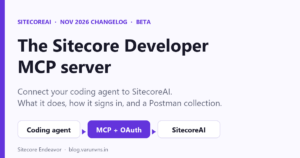
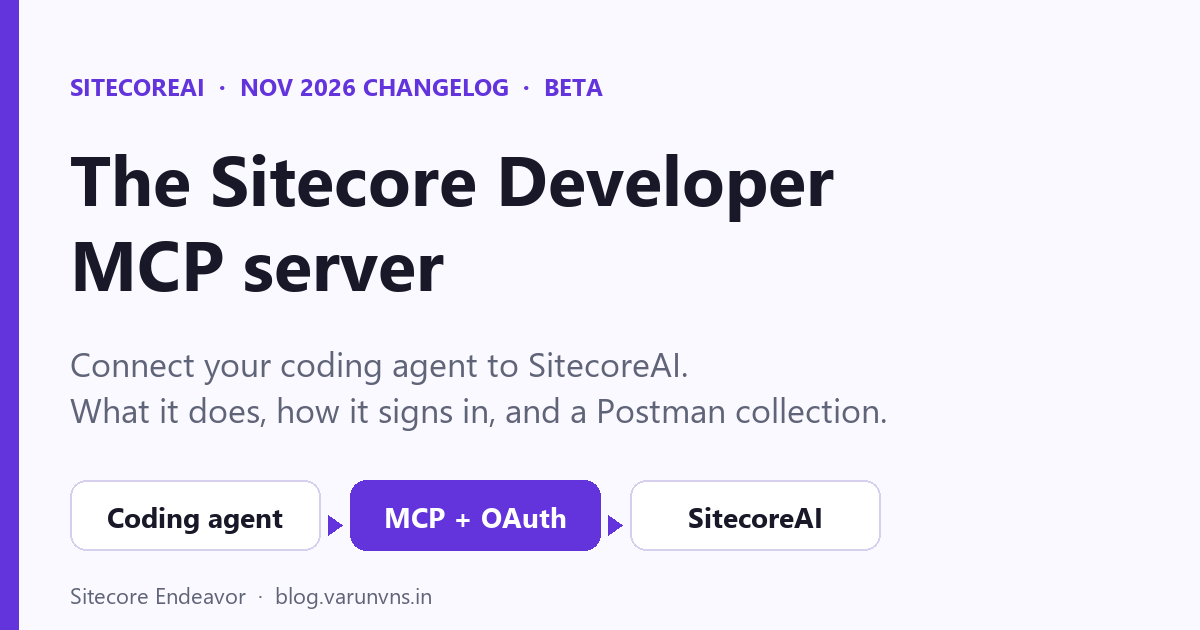
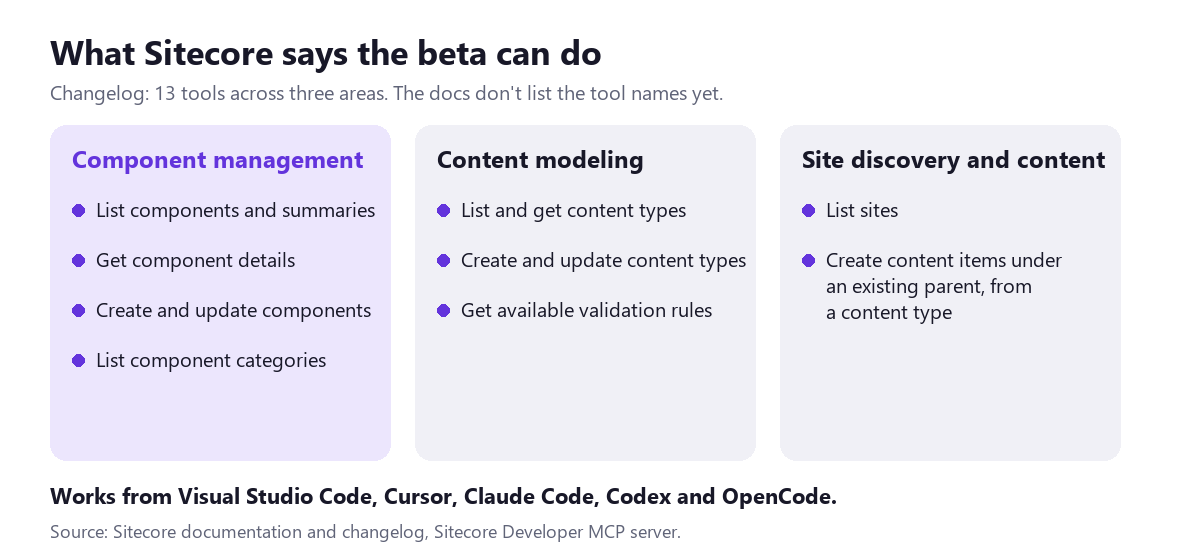
Hope you are doing good. If you have been pointing a coding agent at SitecoreAI, this one is for you: on November 13, 2026, Sitecore released the Sitecore Developer MCP server in beta. It connects AI coding agents to SitecoreAI development tools through the Model Context Protocol (MCP), and it works from Visual Studio Code, Cursor, Claude Code, Codex and OpenCode.
When I looked, I couldn’t find an article on this server yet. So here is what Sitecore says it does, how to connect from the clients that are documented, what I could check about the sign-in, and what the docs don’t tell you yet. I have also put together a Postman collection so you can see the whole thing on the wire.
What it is, and what it is not
It is a remote MCP server for developers. Sitecore describes its purpose as creating and updating components and content types, configuring component availability for sites, and creating content items. The changelog says the beta has 13 tools across component development, content modeling, site discovery and content item creation.
Sitecore also has a separate Marketer MCP server with its own endpoint, aimed at marketing tasks. Same protocol, different job. This post is only about the Developer one.
How to connect
Endpoint: https://edge-platform.sitecorecloud.io/mcp/developer
Server name: sc-developer
Transport: Streamable HTTP, with MCP OAuth. There are no headers to set and nothing to install locally. Your client opens a browser prompt and you sign in.
For Claude Code it is one command:
claude mcp add --transport http sc-developer https://edge-platform.sitecorecloud.io/mcp/developerFor Visual Studio Code, add this to .vscode/mcp.json:
{
  "servers": {
    "sc-developer": {
      "type": "http",
      "url": "https://edge-platform.sitecorecloud.io/mcp/developer"
    }
  }
}
For Cursor, add this to .cursor/mcp.json (or ~/.cursor/mcp.json):
{
  "mcpServers": {
    "sc-developer": {
      "url": "https://edge-platform.sitecorecloud.io/mcp/developer"
    }
  }
}
Codex and OpenCode take the same URL in their own config files, followed by a sign-in command. Sitecore’s page has the exact snippets:
| Client | Sign-in command |
|---|---|
| Codex | codex mcp login sc-developer |
| OpenCode | opencode mcp auth sc-developer |
What happens when you sign in
“MCP OAuth with no headers” sounds simple, and for you it is. But I was curious about what the client does behind the browser prompt, so I checked the server’s public discovery documents. Those are read-only, and you can see them yourself:
- Call the endpoint with no token and you get a
401, with aWWW-Authenticateheader that points to the resource metadata. - The resource metadata names the authorization server.
- The authorization server metadata lists an authorize endpoint, a token endpoint and a registration endpoint. It supports the
authorization_codeandrefresh_tokengrants, and PKCE (S256andplain).
So the client discovers all this, registers itself using dynamic client registration, sends you to the browser for the code, then swaps it for a token. That is the standard MCP authorization flow, and it is why you never paste a key anywhere.

To be clear about the limits of that check: I did not sign in or call any tool. I looked at what the server publishes before sign-in.
What Sitecore’s example looks like
The docs give a prompt along these lines: “Create a Testimonial component for Skatepark, with quote, author name, role, and a portrait. Keep it consistent with Skatepark’s templates.”
As described, the agent finds the site, reads the existing components, categories and content types to learn your naming and field patterns, proposes fields (and asks if nothing in the site sets a pattern), then the server creates the content type and registers the component with the right category and site. The agent reads both back to verify. Sitecore notes the steps can vary between runs, and adds: “Review all changes before you publish.”
I would add one more: treat it like a developer on their first week. It is quick, and it needs a review.
What the docs don’t say yet
This is beta, and Sitecore is asking for feedback. A few things I could not find in the docs:
- The tool names and parameters. The changelog says 13 tools, but the page lists capabilities, not tools.
- Roles and permissions. No prerequisites are listed, so it is unclear who can sign in and what they can change.
- Limits and troubleshooting. None stated.
Until those arrive, tools/list is how you read the real tool names and input schemas. That is exactly what the Postman collection below does.
The Postman collection
I put together a collection with 10 requests in three folders:
- Discovery (no sign-in): the 401 call, the resource metadata and the authorization server metadata.
- Register a client (once): dynamic client registration, saving the
client_idinto a variable. - MCP session:
initialize,notifications/initialized,tools/list, atools/calltemplate,pingand an optional session end.
Import it, run folder 1 and you will see the same discovery documents I described above. For folders 2 and 3 you sign in from the collection’s Authorization tab. After tools/list, open the Postman Console and it prints every tool name.
Download: Sitecore Developer MCP Postman collection and environment
A few honest notes on it. The server can create and update components and content types, so use a non-production environment before you call a write tool. Sitecore documents the sign-in for MCP clients, not for Postman, so the Postman OAuth step follows the server’s published metadata and may need adjusting. And it is unofficial and the server is in beta, so things will change. If something stops working, please tell me in the comments and I will update it.
My take
Component and content-type work is repetitive, and it is where a coding agent that knows your site’s existing patterns can save real time. The part I will watch is governance: who can sign in, what a write tool is allowed to touch, and how teams review what an agent creates. The docs are quiet on all three today. If you are trying this on a project, start on a sandbox site and read the tool list first.
Hope this helps!
References:
- Sitecore Developer MCP server (documentation)
- Sitecore changelog: Sitecore Developer MCP server released in beta (Nov 13, 2026)
- Sitecore Marketer MCP server (documentation)
Happy Sitecoring and Happy Prompting! 🙂